More Songs? This will help
Written by Mark on June 27, 2026
This small release (v1.11) came about as I was using the new Chord Chart editor and bumped into some issues. This led me to improve some backend stuff before making several other improvements to chord charts, drum grooves, and overall app navigation. Here’s a quick overview.
As my song list grows, I quickly realized I would need more organizing power. This version has a number of features to make it easier and faster to work with large song lists and build setlists by adding songs directly to them. All song and set actions are now displayed as pills above the song list. When viewing your full song list, creating a new song adds it to the library. When viewing or editing a setlist, creating a new song adds it to the current setlist and your library.
While viewing your full song list, there is also type down searching on song titles to quickly locate a song in a large list. When in setlist view, editing allows you to remove or reorder songs in the list. Removing them here doesn’t delete them from your library.
Lastly, the Chord Chart Editor was a bit funky. Everything looked crowded with more advanced chords. To fix this I updated the display and now things are formatted better. I also added a delete button to easily clear notes.
I also got started on some drum groove editor improvements. I've added support for 3/4 and 6/8 time signatures. There's more work to do here.
Release v1.10 of Music.Notes is now available
Written by Mark on May 4, 2026
There are several new features available in release v1.10 of Music.Notes. The application splash screen and the Settings page both now show the version number. If you don't see v1.10, reload the application to get the newest version. On your iOS device this may require killing the app with a swipe up. On a laptop, refresh your browser to load the newest version of the application.
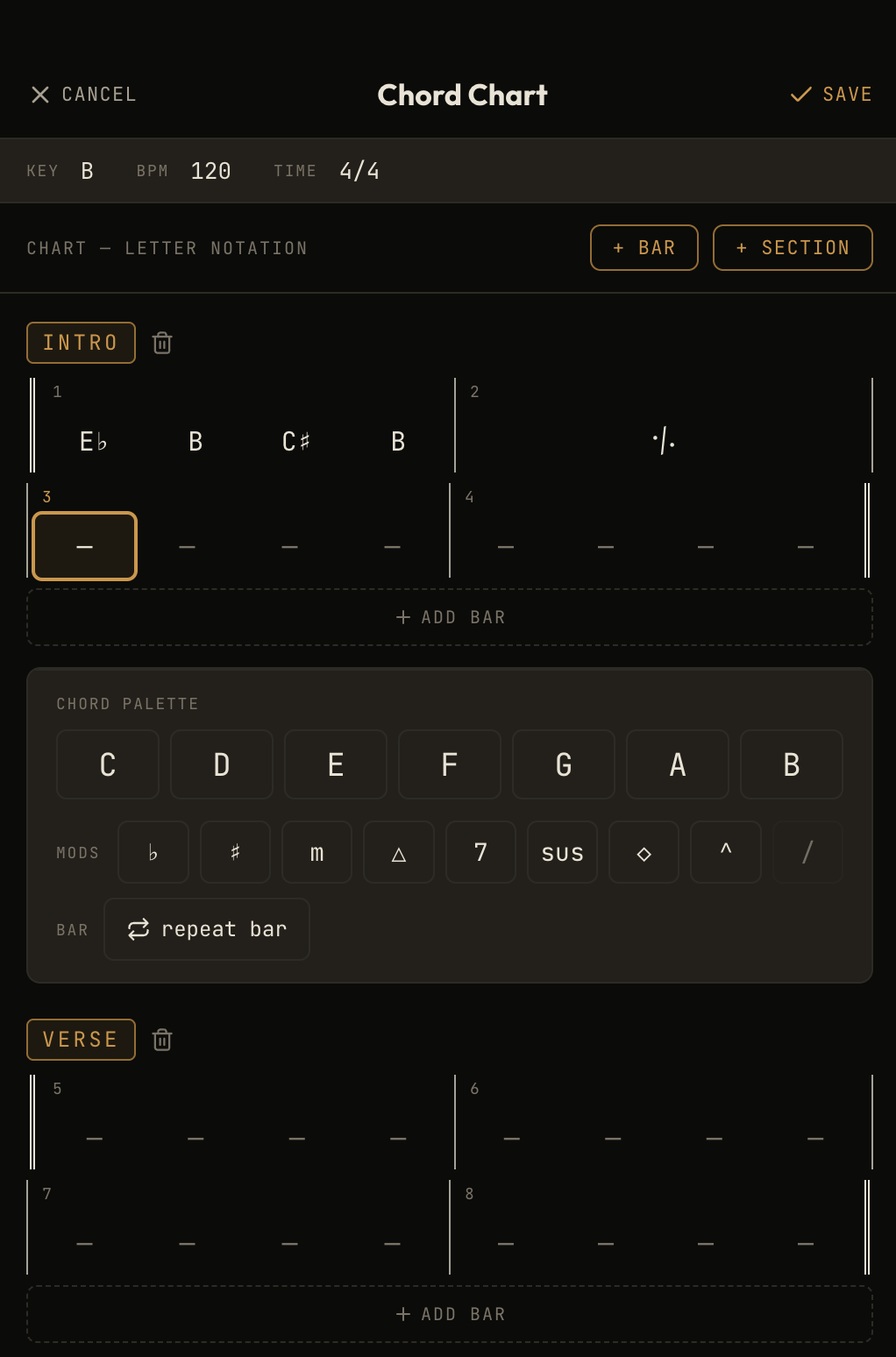 New Chord Chart Editor! If you like to create and use chord charts similar to what you might see in iRealPro and other chord sites, you can now create them as a section in your songs. The chord chart editor is available on the Add Notation sheet. Choosing Chord Chart will load the chord chart editor. Here you can build a chart with any number of measures, and enter the chord progressions for each section of the song. A list of chords and modifiers are included in the editor so you can add major, minor, seventh, maj7, sharp/flat, sus, diminished, augmented, and slash chords to your chart. A repeat symbol is also on the palette for easily notating bars that repeat the same pattern.
The chord chart editor has 9 chord modifiers, each with its own glyph for display:
| Modifier | Glyph | Meaning |
| b | ♭ | Flat |
| # | ♯ | Sharp |
| m | m | Minor |
| maj7 | △ | Major 7 |
| 7 | 7 | Dominant 7 |
| sus | sus | Suspended |
| dim | ◇ | Diminished |
| aug | ^ | Augmented |
| / | / | Slash Chord |
Custom Section Labels
Music.Notes now supports custom section labels in your songs. Clicking on any song section header opens the drop down displaying all available section labels. This dropdown now includes the "Custom" option on the bottom of the list. Select this to type your own label into the section header. All custom labels will be saved to the dropdown list so you can use your favorite section labels in all of your songs. Expandable Text Sections
Text sections in Songs now expand as you type. No more scroll bars. Always see the complete note in Song Edit and Stage Mode views. Don't forget that you can set the font size for text notes in Stage Mode from the Settings Page.
There is also one small improvement to the Drum Groove Editor. The Hi Hat row now supports an open hi hat option when toggling through the note types. Tap once for a standard hi hat note, tap again for an open hi hat, and tap once more for a ghost note.
Lastly, there is a new option in the main menu that takes you to the Music.Notes blog where you can get tips and tricks on using the app as well as keep up with the release notes.
Using Music.Notes on your mobile device
Written by Mark on April 24, 2026
Music.Notes is a web application. Clicking on the link (musicnoteapp.com) will launch the app in your browser. You could bookmark this link and launch it that way. This would require you to login each time to retrieve your songs or keep the browser tab open so you can go back to it whenever you need it. It would also mean the browser menu and address bar will show on screen and use some of your display preventing you from seeing the entire interface of the application.
There is an easier and faster way to use Music.Notes on your iPhone, iPad, or Android device. First, click the link and launch the application. Then go to "Share" and "Add to Home Screen". This will create an icon on your device. Now you can tap the icon to load Music.Notes like any other mobile application. After logging in, tapping this icon will automatically resume your session and load all of your songs and sets without any additional steps.
One final thing. You don't need to login to use Music.Notes. However, this does limit you to a single device and the possibility that you lose song data you've created if you close your browser or clear your cache. After creating a Music.Notes login, your data is stored in the cloud and you can access your songs from any device. This feature makes it very easy to create and edit your song content and setlists on a laptop and then instantly have access from your phone when you're at rehearsal or the gig.
Getting Started
Written by Mark on April 12, 2026
What is Music.Notes?
I created Music.Notes to keep track of songs and arrangements as a performing musician gigging in the SF Bay Area with several bands. I play drums in some projects and keyboards in others. This meant there wasn't a good solution that met my needs for charting and note taking to prepare for performances. And the setlists are always changing! So it needed to be simple, fast, and mobile. I built Music.Notes with these ideas in mind. Here's how it works.
Creating Songs
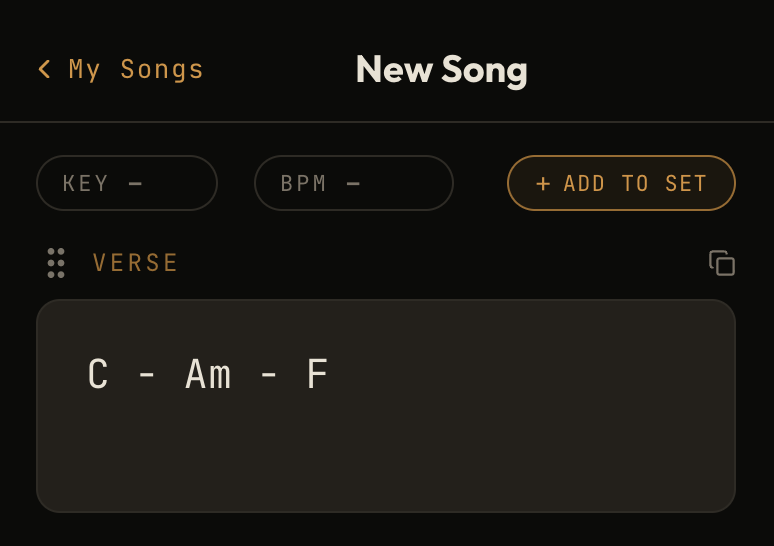
Launch Music.Notes and click the "+" icon on the dashboard to create your first song. In each song you can add any combination of notes containing chord progressions, lyrics, or other reminders about feel and form. These sections can be labeled and reordered to display a complete song map and content when you're in Stage Mode later.
Be sure to fill in the key of the song and the tempo as these values will be used when editing and previewing songs in Stage Mode.
Adding Notation, Drum Grooves and Charts
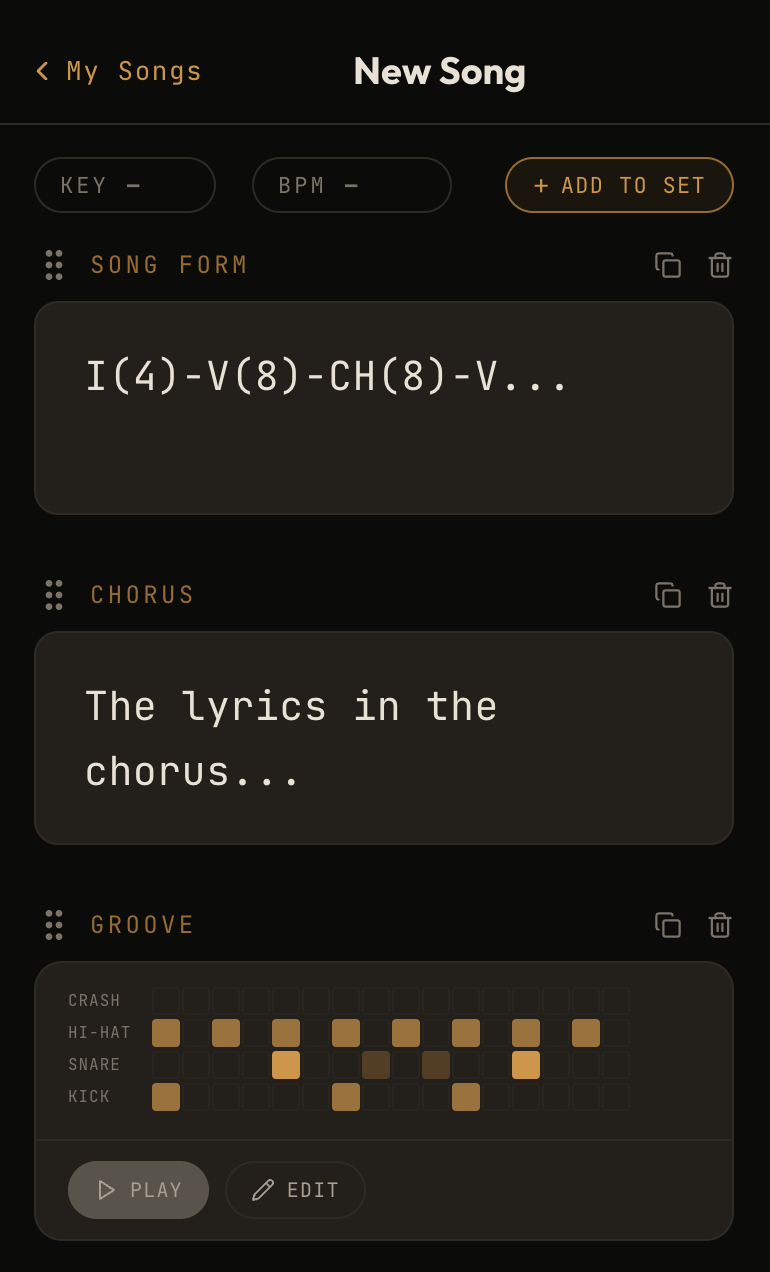
Your songs can contain more than just notes. Now add music notation and drum grooves, or import your existing charts for easy organization into setlists.
When I create songs in Music.Notes, I use the song sections in lots of ways to help me remember my parts and the agreed to arrangement with the band. If I'm playing keyboards or guitar, I can insert notation for riffs, solos and chords, and refer to them easily in the practice room or on stage so I never forget a lick.
The Drum Pattern Editor is a quick and easy way to write drum charts into your songs. Create as many patterns as you need to capture the grooves and fills of the song.
Drum parts can include swing percentage and will play at song tempo when previewing on the Song or Stage Mode pages.
I can never remember lyrics, so when I have to sing background vocals, I import the song lyrics and highlight the phrases I'm supposed to sing.
Stage Mode
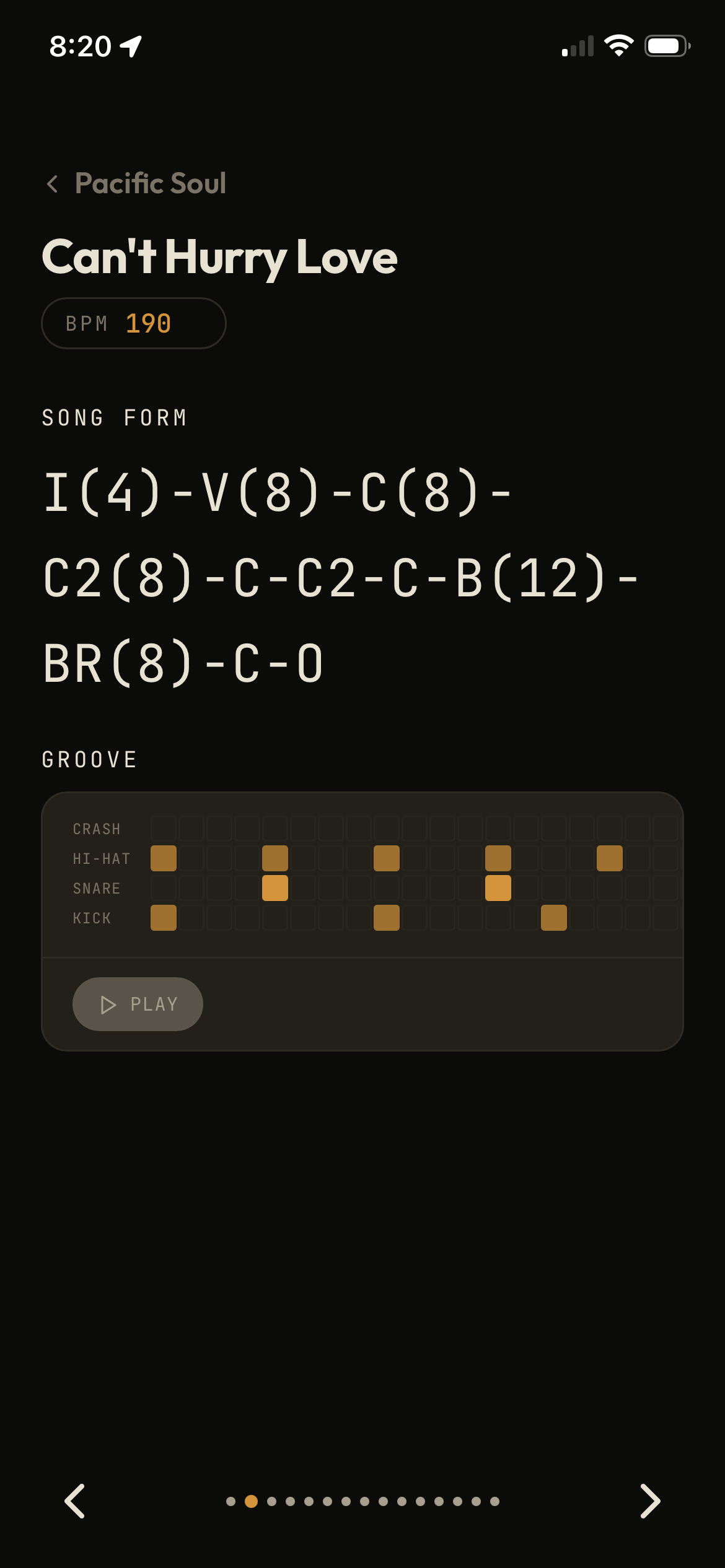
Music.Notes is designed to shine during live performance in any venue.
To access Stage Mode; add your songs into a setlist, order them for the show, and click a song to start. Music.Notes will display your notes for each song in the setlist, in the right order, using a bright, high-contrast full screen view on iPhones, iPads, or your computer.
You can swipe left and right to advance through the set, and your progress will show in the app so you know exactly where you are in the show.
Music.Notes has dark and light themes included so you can optimize for dark stages or outdoor festivals. Go to Settings in the main menu to change themes and personalize Music.Notes to you.